# Commissions

Customization of commissions to reflect your broker's fee structure allows for more accurate P\&L calculations, helping you to better manage your trading costs.

Below are steps for adding or editing commissions templates in NinjaTrader:

## Select Your Pricing Plan

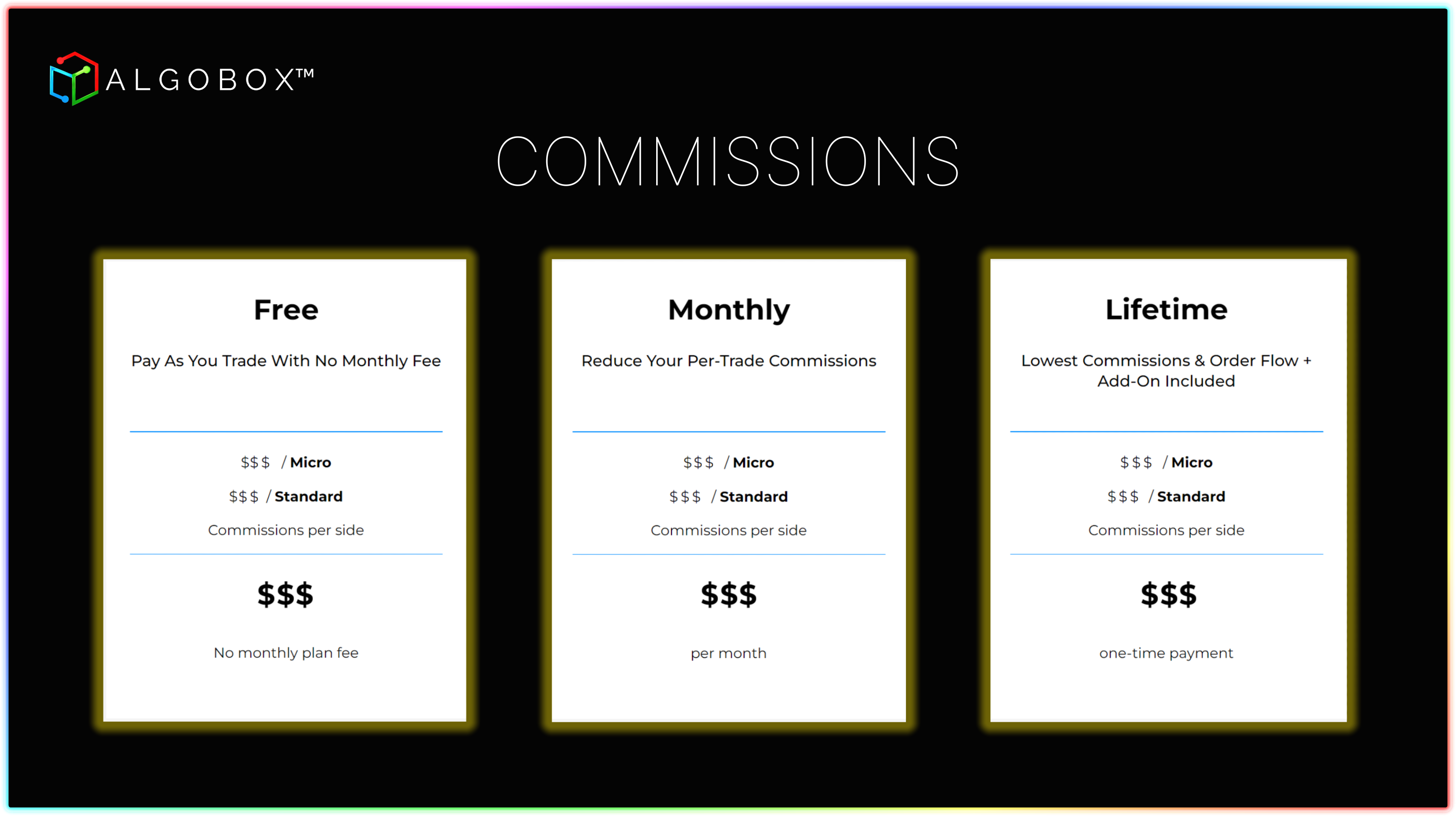
<figure><img src="https://3588932008-files.gitbook.io/~/files/v0/b/gitbook-x-prod.appspot.com/o/spaces%2FSmdQdlKTkpiw2LN0L1TV%2Fuploads%2FltGKG08MTxfh3Lr4lLyd%2Fcommission%201.png?alt=media&#x26;token=3334ad9f-a33d-4258-b90c-c0f3916295a3" alt=""><figcaption><p>In the NinjaTrader Brokerage portal, select the pricing plan that best suits your needs. Each plan reflects the commission structure based on your chosen option.</p></figcaption></figure>

## Steps For Managing Commissions Templates

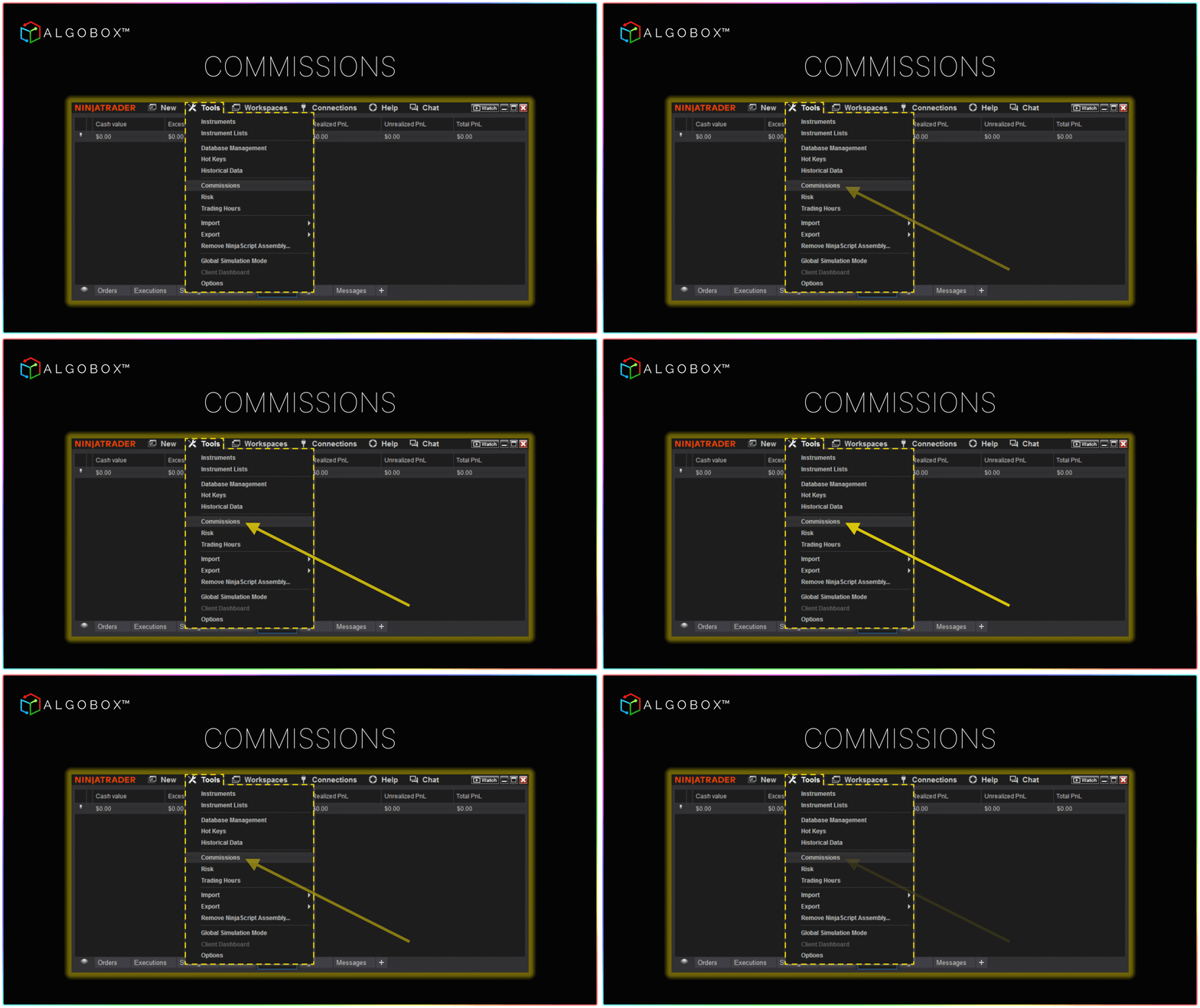
<figure><img src="https://3588932008-files.gitbook.io/~/files/v0/b/gitbook-x-prod.appspot.com/o/spaces%2FSmdQdlKTkpiw2LN0L1TV%2Fuploads%2FmK9vcS9J3U8VDm2zfKxc%2Fcommissions%20GIF%201%20.gif?alt=media&#x26;token=925f298e-0c3a-4c8a-af0e-0d0ff71159b0" alt=""><figcaption><p>Navigate to the "Tools" tab and select "Commissions" from the menu.</p></figcaption></figure>

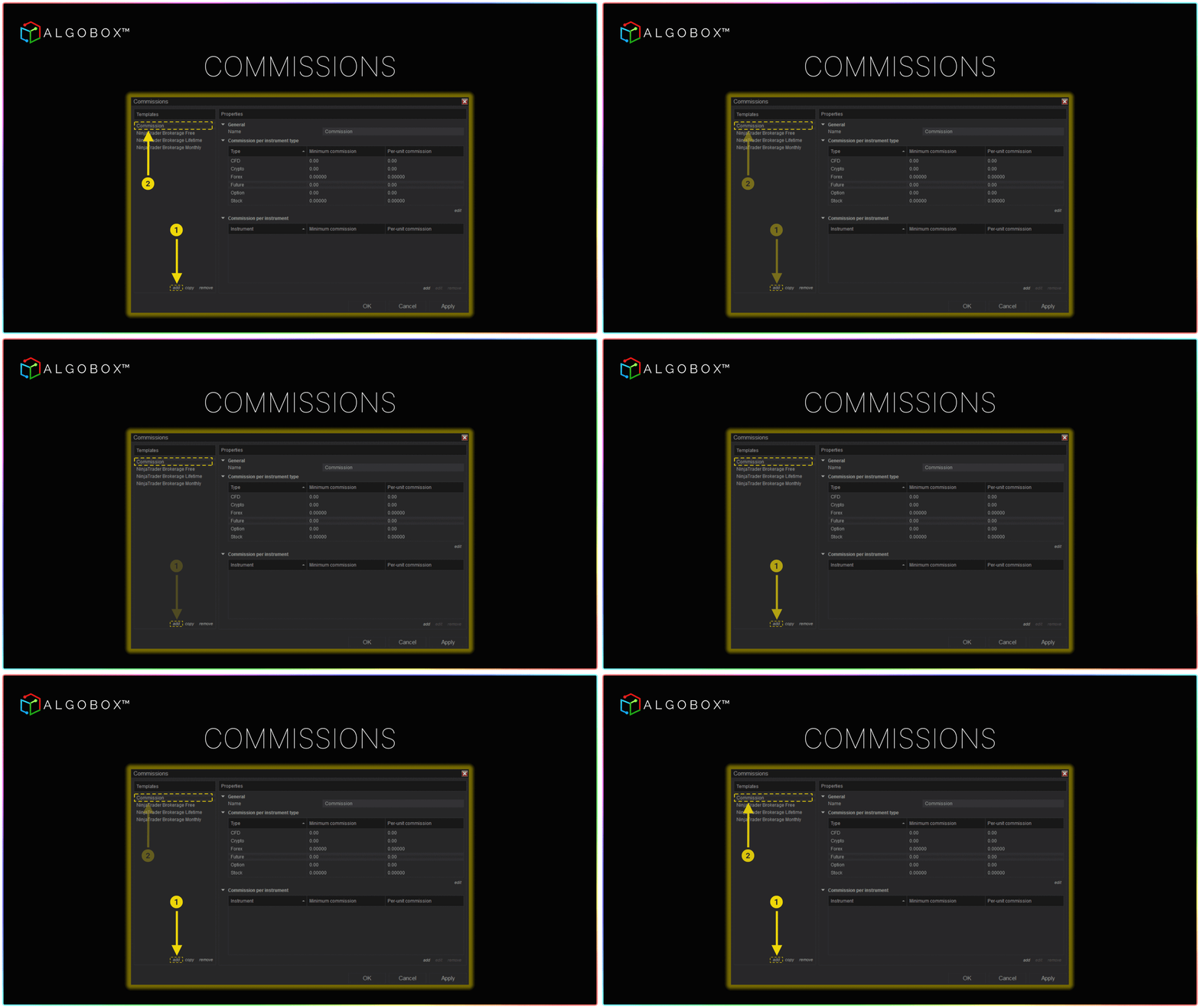
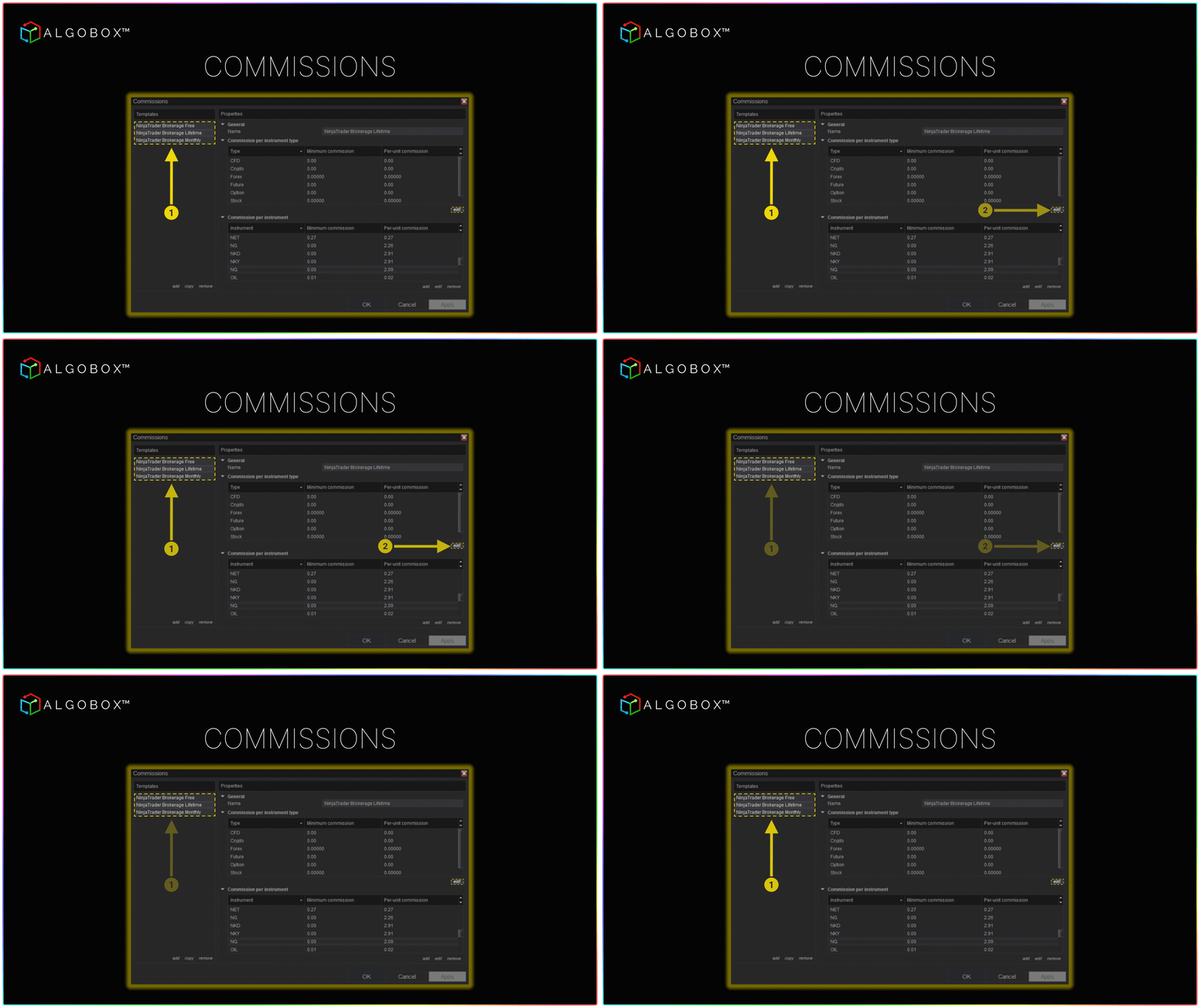
The Commissions window includes several default Commission Templates, based on the available NinjaTrader account types.

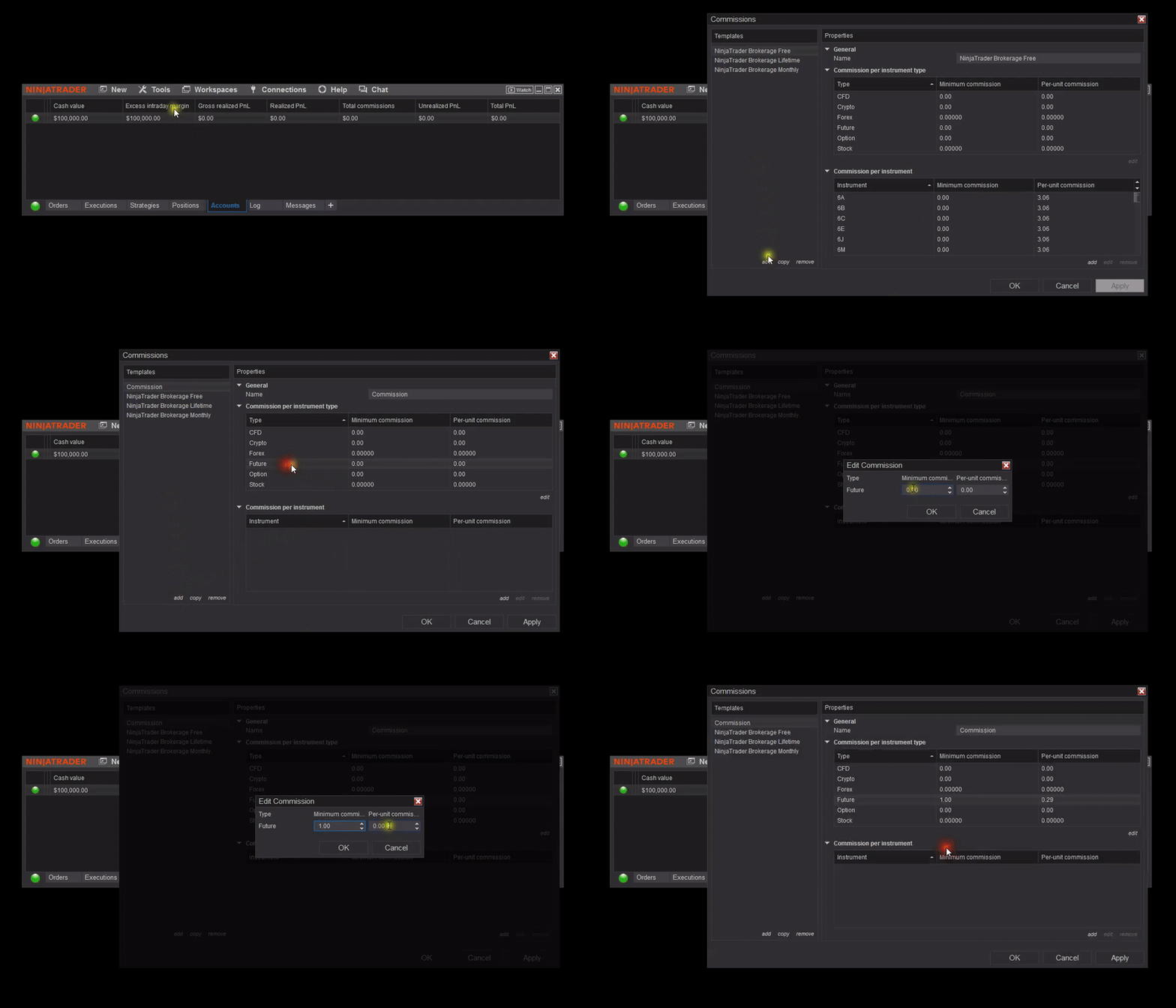
<figure><img src="https://3588932008-files.gitbook.io/~/files/v0/b/gitbook-x-prod.appspot.com/o/spaces%2FSmdQdlKTkpiw2LN0L1TV%2Fuploads%2F7ctPXkW17C9R0KXwCT4b%2Fcommissions%20GIF%209.gif?alt=media&#x26;token=38da9c52-3329-4eb2-9ac6-019ff596229d" alt=""><figcaption><p>!) Select a template and click "Add" 2) Create a new commission template or select a default. </p></figcaption></figure>
## Managing Commissions Per Instrument Type

Instrument types include markets such as Futures, Stocks, Forex, Options, etc.

<figure><img src="https://3588932008-files.gitbook.io/~/files/v0/b/gitbook-x-prod.appspot.com/o/spaces%2FSmdQdlKTkpiw2LN0L1TV%2Fuploads%2Fpezrr4BBemEjK31UzAls%2Fcommissions%20GIF%20G.gif?alt=media&#x26;token=244310e1-8155-4fcc-a71d-0404eaf45f95" alt=""><figcaption><p>1) Select desired template 2) Choose any instrument type, and click "Edit."</p></figcaption></figure>

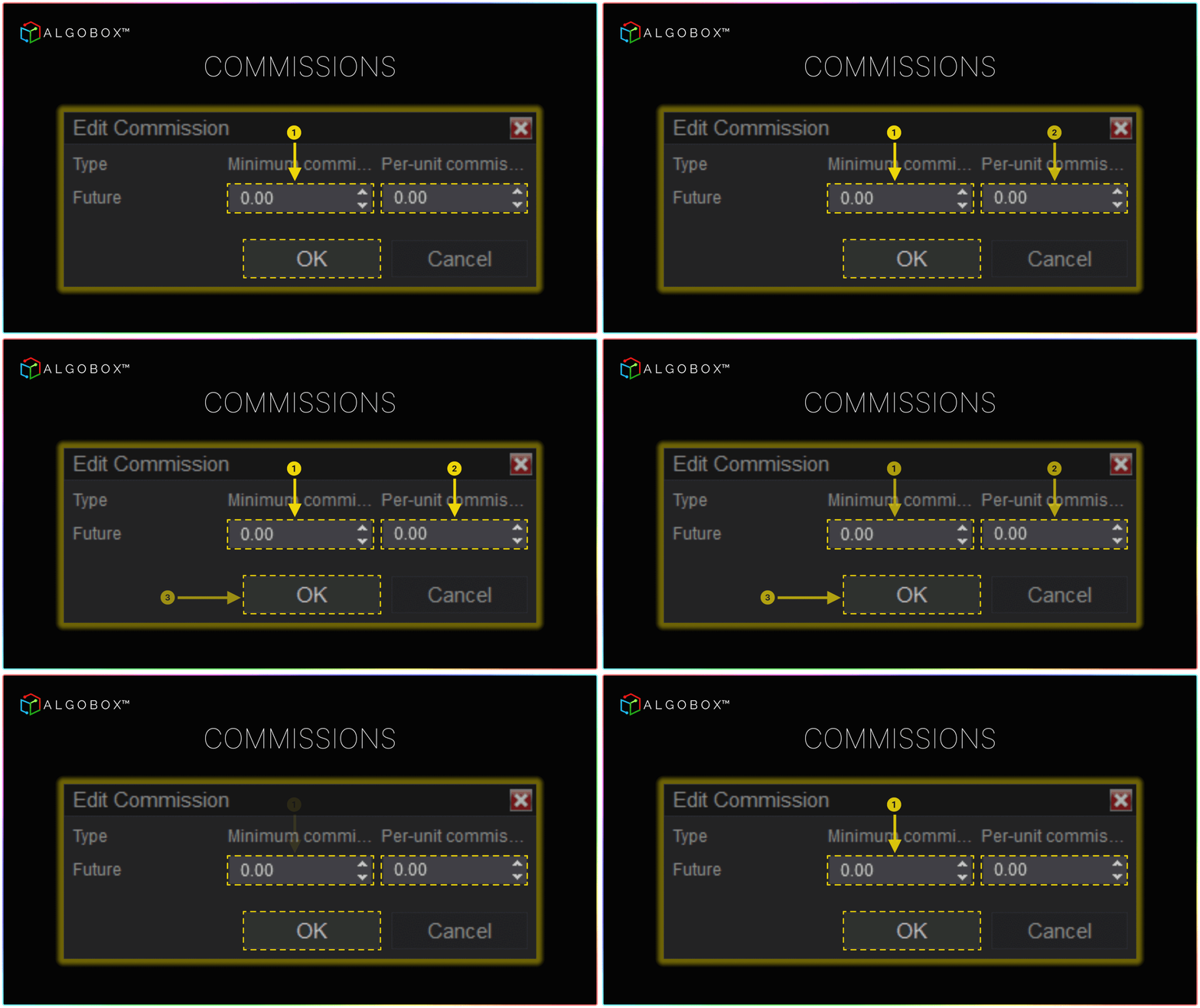
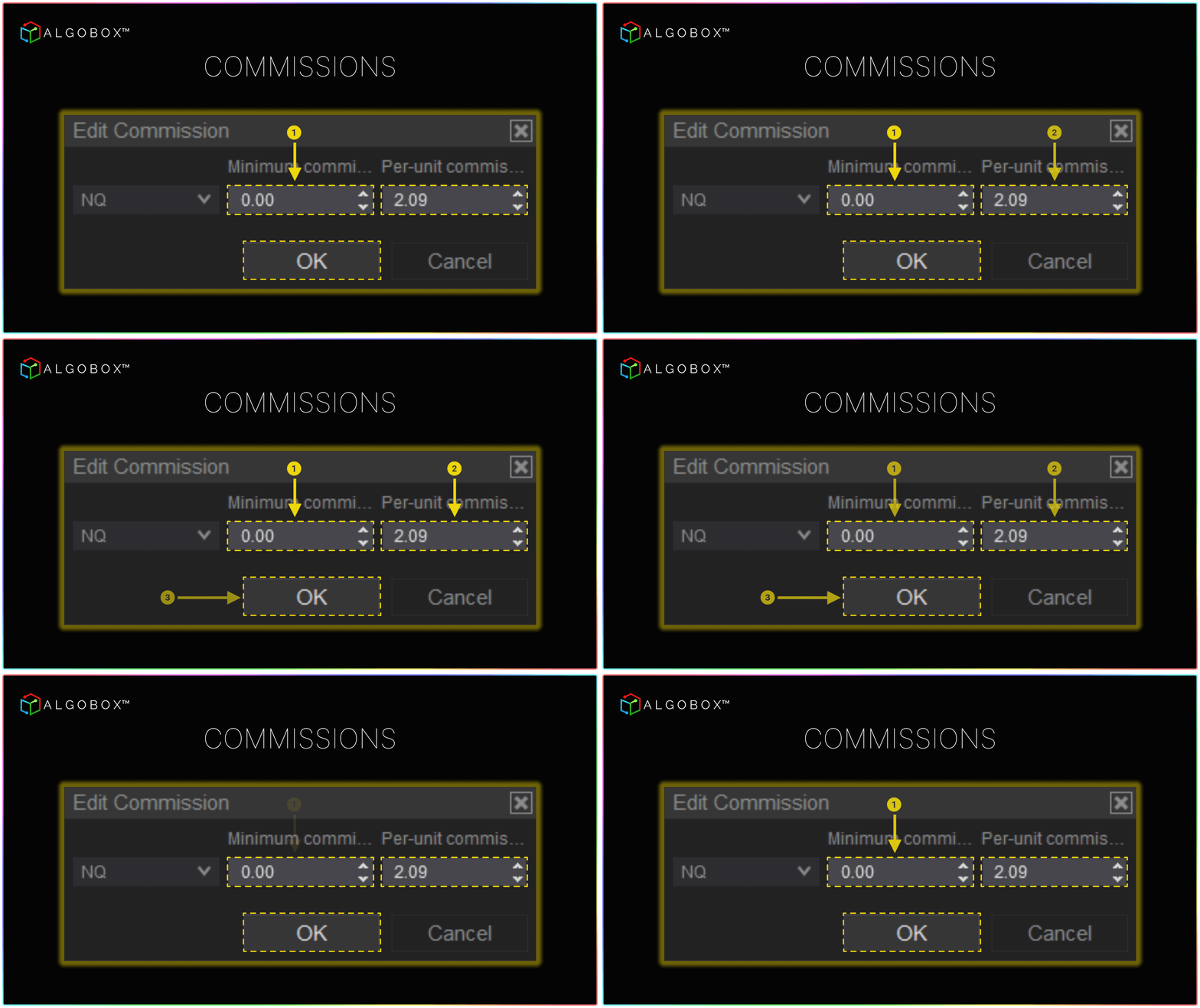
<figure><img src="https://3588932008-files.gitbook.io/~/files/v0/b/gitbook-x-prod.appspot.com/o/spaces%2FSmdQdlKTkpiw2LN0L1TV%2Fuploads%2Fzl5ofBR2J02TTgwwB5Cc%2Fcommissions%20GIF%20F.gif?alt=media&#x26;token=276db9a8-2926-4f61-b215-9cbe431b0408" alt=""><figcaption><p>Enter the commissions of your broker, then click "OK."</p></figcaption></figure>

{% hint style="info" %} <mark style="color:yellow;">View NinjaTrader's commission rates based on selected plan</mark> [*here*](https://ninjatrader.com/pdf/ninjatrader_futures_commissions.pdf)<mark style="color:yellow;">.</mark>
{% endhint %}

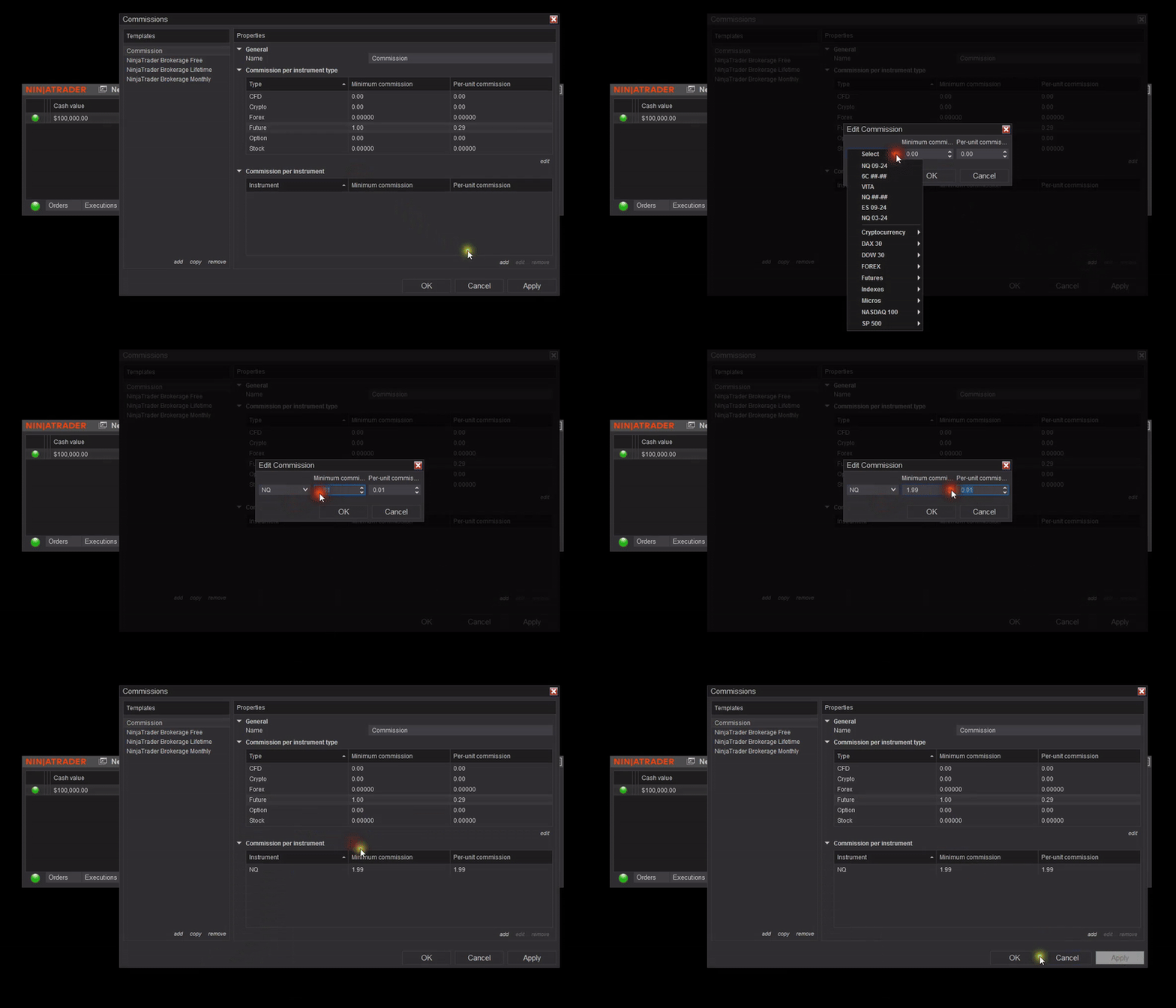
## Managing Commissions Per Specific Instrument

Specific instruments include YM, NQ, ES, RTY, etc.

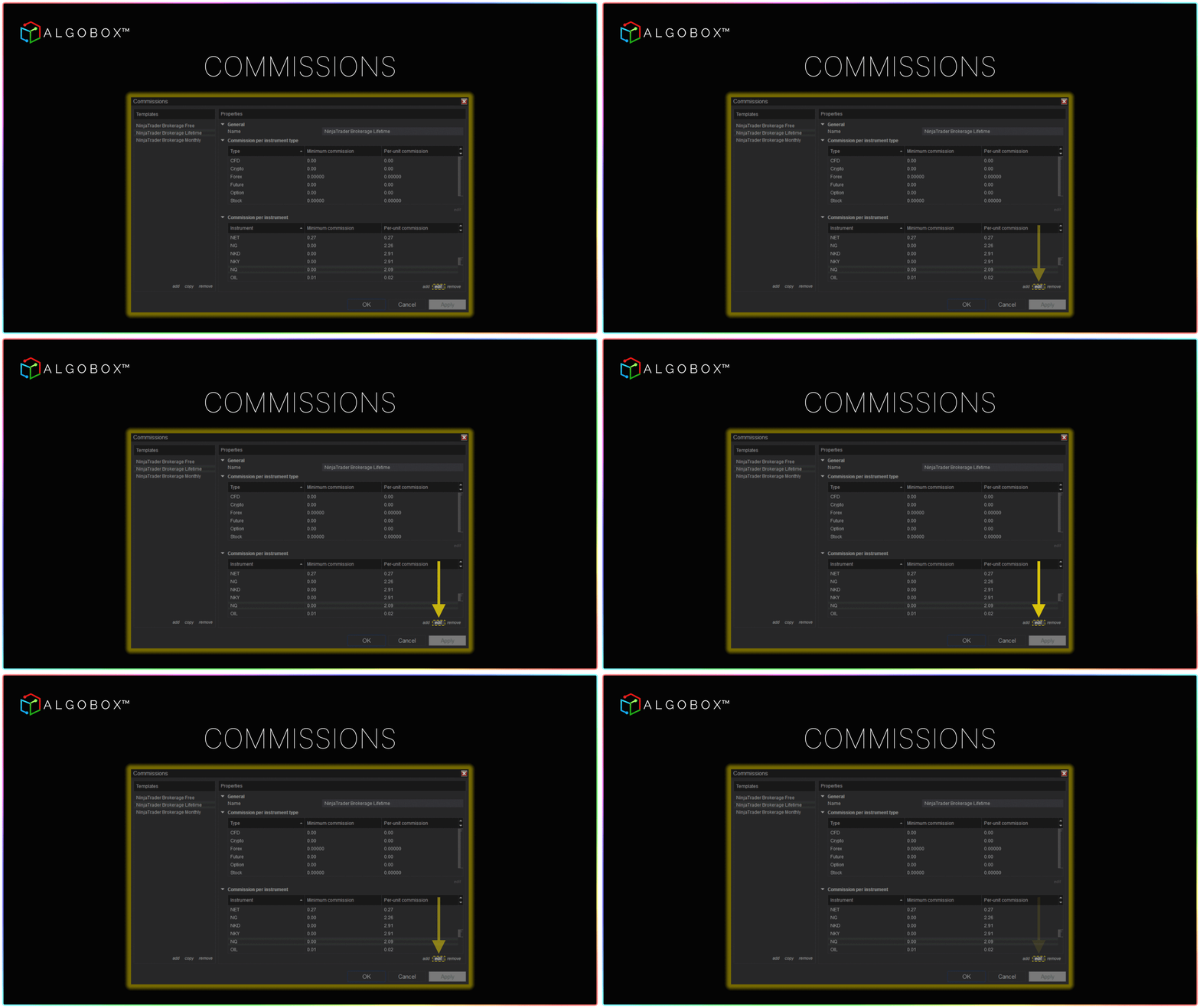
<figure><img src="https://3588932008-files.gitbook.io/~/files/v0/b/gitbook-x-prod.appspot.com/o/spaces%2FSmdQdlKTkpiw2LN0L1TV%2Fuploads%2FOtyRnBxvagpshnX33dhR%2Fcommissions%20GIF%203%20.gif?alt=media&#x26;token=d18b6f61-6cee-4389-a92f-77a07b4203cd" alt=""><figcaption><p>Select the instrument and click on the 'Edit' option to modify the commissions for a specific instrument.</p></figcaption></figure>

<figure><img src="https://3588932008-files.gitbook.io/~/files/v0/b/gitbook-x-prod.appspot.com/o/spaces%2FSmdQdlKTkpiw2LN0L1TV%2Fuploads%2F30EFQnIEUlrYjDu6mDQH%2Fcommissions%20GIF%20C.gif?alt=media&#x26;token=446eebbc-4c22-4e7d-8149-b3a8f018c547" alt=""><figcaption><p>Enter the commissions of your broker, then click "OK."</p></figcaption></figure>

{% hint style="warning" %} <mark style="color:yellow;">It is important to note that any commissions entered for specific instruments will override settings for that instrument's type. For example, setting instrument-specific commissions for the E-Mini S\&P 500 futures contract will override any commissions set for all Futures instruments.</mark>
{% endhint %}

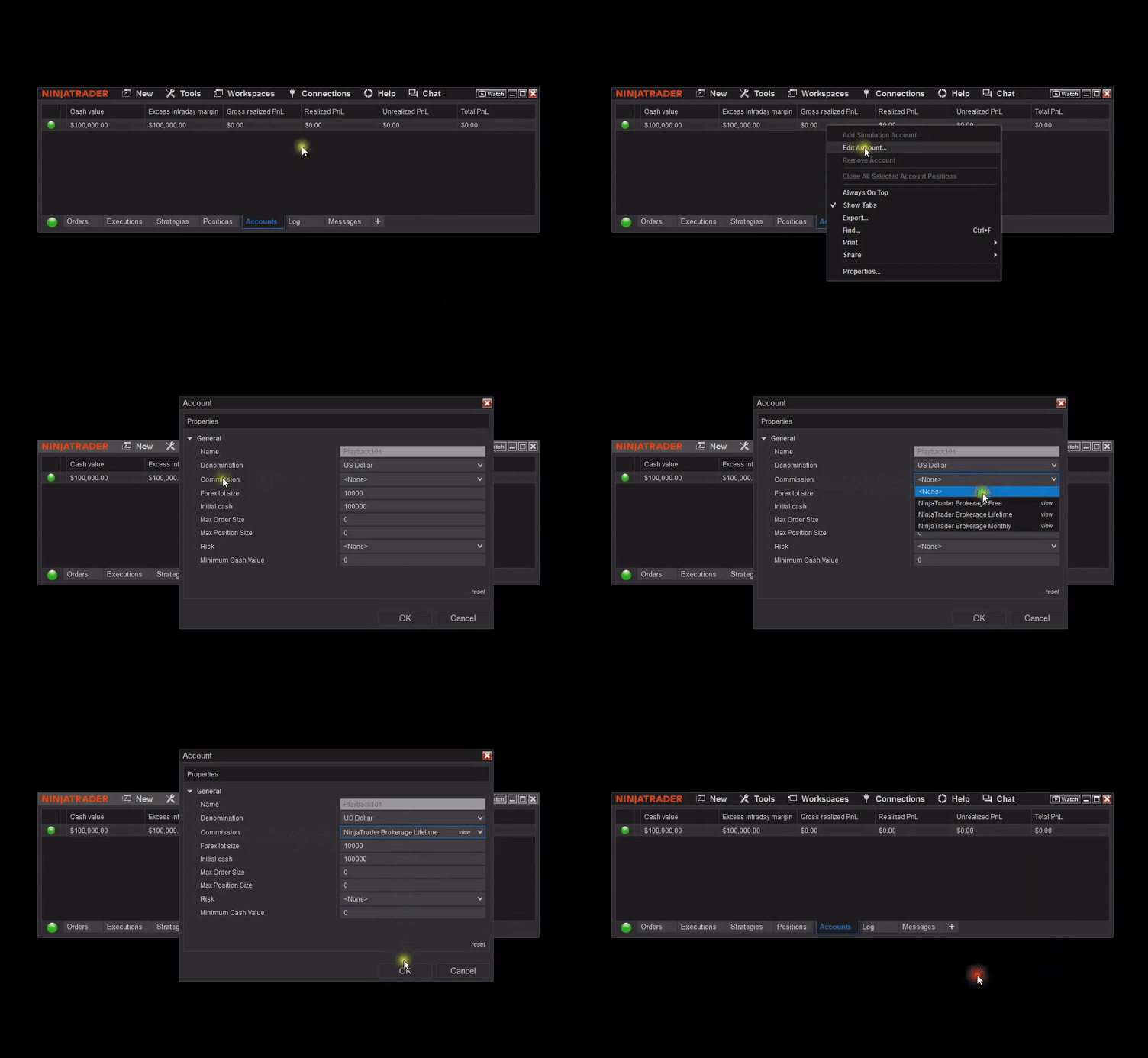
## Applying Commissions Templates To Your Accounts

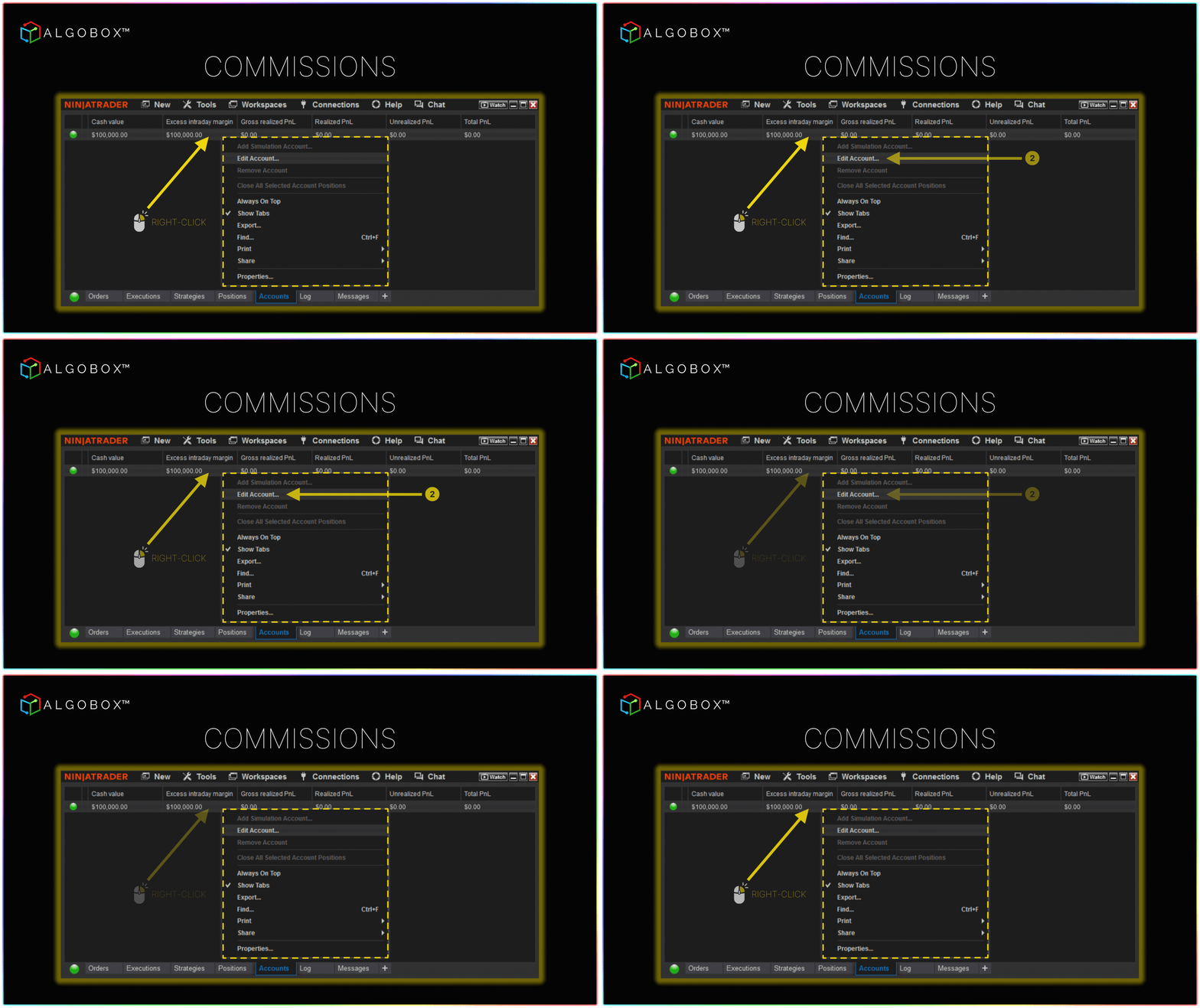
<figure><img src="https://3588932008-files.gitbook.io/~/files/v0/b/gitbook-x-prod.appspot.com/o/spaces%2FSmdQdlKTkpiw2LN0L1TV%2Fuploads%2FeYs5bNeLf9JtV2ZnDKQL%2Fcommissions%20GIF%20D.gif?alt=media&#x26;token=5ffc8537-85b4-4af2-bcd8-f77abd7952a4" alt=""><figcaption><p>On the Accounts tab of the NinjaTrader Control Center, right-click on the trading account and select "Edit Account" from the menu.</p></figcaption></figure>

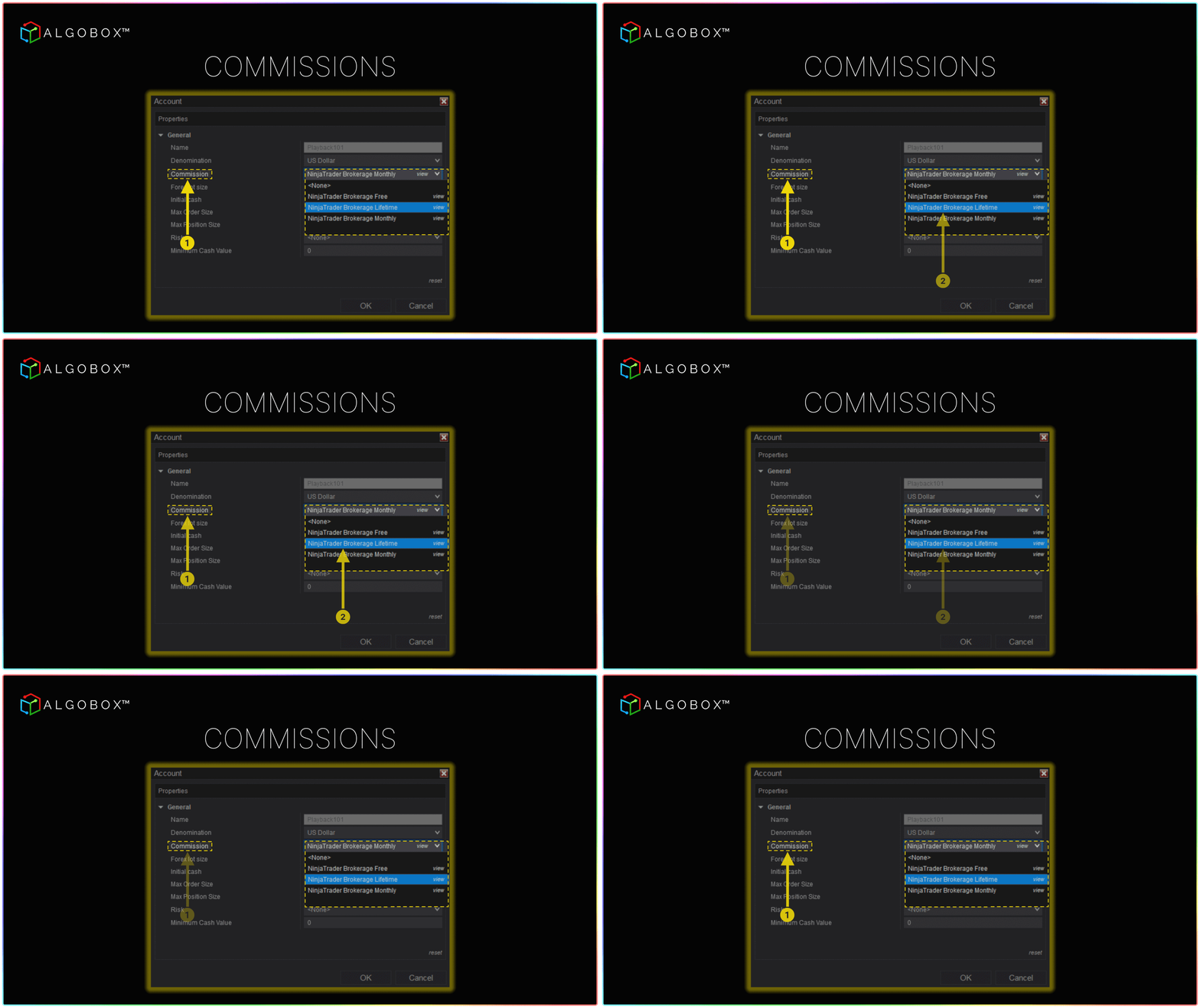
<figure><img src="https://3588932008-files.gitbook.io/~/files/v0/b/gitbook-x-prod.appspot.com/o/spaces%2FSmdQdlKTkpiw2LN0L1TV%2Fuploads%2FYedgMhdXsIytvyPZaGqo%2Fcommissions%20GIF%20E.gif?alt=media&#x26;token=cede4f89-459e-4493-9465-ec0fb4d11e55" alt=""><figcaption><p>1) Click "Commissions"  then 2) select your chosen template.</p></figcaption></figure>

***

## Examples Of Managing & Applying Templates&#x20;

<figure><img src="https://3588932008-files.gitbook.io/~/files/v0/b/gitbook-x-prod.appspot.com/o/spaces%2FSmdQdlKTkpiw2LN0L1TV%2Fuploads%2F2LJUXUb5WtVzOymiWYrw%2Fcommissions%20GIF%201%20EG.gif?alt=media&#x26;token=088a9348-5f59-4233-97e6-9ba754fb28be" alt=""><figcaption><p>WATCH: How to add templates &#x26; manage commissions per instrument type in NinjaTrader.</p></figcaption></figure>

<figure><img src="https://3588932008-files.gitbook.io/~/files/v0/b/gitbook-x-prod.appspot.com/o/spaces%2FSmdQdlKTkpiw2LN0L1TV%2Fuploads%2F3IODT6igzTHDUqdvphXx%2Fcommissions%20GIF%203%20EG.gif?alt=media&#x26;token=7e5d01c3-824a-4308-8bc4-672233a3711e" alt=""><figcaption><p>WATCH: How to manage instrument-specific commissions in NinjaTrader.</p></figcaption></figure>

<figure><img src="https://3588932008-files.gitbook.io/~/files/v0/b/gitbook-x-prod.appspot.com/o/spaces%2FSmdQdlKTkpiw2LN0L1TV%2Fuploads%2FplMwfeYn164ab09h431A%2Fcommissions%20GIF%202%20EG.gif?alt=media&#x26;token=20e337fb-b82c-4c98-b1ca-5ea9c05bd63e" alt=""><figcaption><p>WATCH: How to apply commission templates to your accounts in NinjaTrader.</p></figcaption></figure>

***

[Try AlgoBox™ for free ](https://www.algoboxpro.com/start-trial)- No credit card required, no obligation, no gimmicks.

[Disclaimer](https://docs.algoboxpro.com/links/disclaimer)